
What is Sudachi Emulator?
Sudachi Emulator is a free, open-source Nintendo Switch emulator that allows gamers to play Switch titles on non-console devices. It’s a fork of Yuzu Emulator, but unlike Yuzu, Sudachi is developed exclusively in-house, meaning all updates and optimizations come directly from the creator.
With support for NSP/XCI game formats, resolution scaling, and customizable controls, Sudachi is designed for gamers who want performance, flexibility, and an authentic console-like experience, without the hardware restrictions.
How Sudachi Works?
It analyzes and reads the Nintendo Switch game data from the original console and translate it into chunk of instructions to make your device understandable to run the game.
This Process Allows:
- Graphics Rendering
- Audio Fetching to Play
- Controls To Respond
It copies the behavior of Nintendo Switch through emulation and does not modify it originally.
Platform Compatibility
The sudachi emulator is designed and developed to work on multiple operating system.
- Android
- Windows
- macOS
- Linux
- iOS
How It Compares to Other Switch Emulators?
Unlike traditional switch emulators such as Yuzu, the sudachi focuses on:
- Compatibility With Mobiles
- Beginner Friendly Setup
- Latest Hardware Support
Instead of PC only switch emulator the sudachi attracts the users who needs the simplicity, modernistic and flexibility.
Why Choose Sudachi?
Multi-Platform Support
Play on Android, Windows, macOS, and Linux
Resolution Scaling
Adjust graphics settings (e.g., 0.5x, 0.75x, 1.5x) for smooth gameplay on different devices.
Customizable Controls
Touchscreen layouts or Bluetooth controllers for a real console feel.
Vulkan API Support
Get faster performance, better graphics, and lower latency on compatible GPUs.
High Game Compatibility
Run many popular Switch games with continuous improvements.
No Paywalls, No Subscriptions
100% free and open-source, with regular updates.
Sudachi Emulator Features
Cross-Platform Support
The sudachi allows user to run the switch games on multiple devices with no restriction due to cross platform support with Android, Windows, macOS and Linux.
Smooth Performance & Stability
On supported devices the switch emulator delivers fewer crashes, better frame rates and faster loading because it optimized with modern design for newer hardware.
Customisable Controls
The sudachi emulator enhances the playing experience through adjusting feature such as keyboard inputs, touch controls and remapping controller buttons to match the desire play style comfortably.
Controller Compatibility
It supports Bluetooth and USB controllers that feel closer to using a real Nintendo switch console and making the experience at another level.
Easy Setup & User-Friendly Interface
It’s simple, modern and flexible that makes it beginner friendly to use and easy to install with clear and helpful configuration along with attractive interface.
Sudachi Emulator vs Yuzu: Which is Better?
These both are Nintendo Switch emulators and their ultimate works are same but understand the difference between them helps audience to choose accordingly. Because there’s often debate about Sudachi vs Yuzu, so let’s explore this chaos and find the best Switch emulator 2026.
Sudachi Emulator vs Yuzu Emulator
Sudachi Emulator – Pros & Cons
Pros- Easy To Setup for Beginners
- Works Best in Modern Devices
- Good Control Support on Different Platform
- Runs On Android & PCs Platform
- Compatibility Of Games Varies on Different Devices
- iOS Limited Support
Yuzu Emulator – Pros & Cons
Pros- Popular & Mature Emulator
- Best Performance in High Spec Systems
- Huge Compatibility Due To Large Database
- PC Focused Emulator
- Complex Configuration Process
- Not Optimized for Mobile Device
Real-World Comparison
- The Sudachi Android performance in high end devices is smooth and flexible for some game than the Yuzu on mid-range PCs.
- For advance tuning of the game the power users of gaming pcs still prefer Yuzu.
System Requirements & Compatibility Guide
As like many switch emulator the Sudachi also runs on many devices but meeting the recommended settings with right hardware ensure the smoother and flexible gameplay due to its heavily depends on hardware quality for better performance which fewer the crashes.
Android Requirements
- OS: Minimum android 10 or upper
- CPU: Minimum Snapdragon 865 or latest recommended one
- RAM: At least 6GB but 8GB recommended
- GPU: Vulkan supported
The flagship android mobiles give the best experience
Windows & macOS Requirements
- Windows: Best 10 or 11
- macOS: Monterey or latest
- CPU: Best Intel i5/Ryzen 5 or more upper
- RAM: 8GB preferred
- GPU: Dedicated GPU enhances the performance
Apple Silicon Macs (M1/M2) especially perform good.
Linux Requirements
- Vulgan Supported GPU
- Latest Updated Graphic Drivers
- Modern Linux Distribution Preferred
- Minimum 8GB RAM
The user of Linux can achieve same performance to Windows if configuration setup done correctly.
iOS Compatibility
Unfortunately, the sudachi emulator is not available on the App store.
The installation on iOS requires sideloading but the performance solely depends on device hardware power hence latest iPhones and iPads may give better result.
Recommended Devices for Best Performance
- High End Android Phones
- Dedicated GPU in Gaming Desktop
- Apple Silicon Macs
How to Use Controllers with Sudachi Emulator?
The external controllers and touch controls both supports by sudachi and provides awesome flexible user experience based on playing style.
Bluetooth Controllers
This is Very Popular for Wireless Gaming:
- The suitable controllers are PlayStation, Xbox and third-party gamepads
- connect the controller to pair with device Bluetooth settings
- most of the times the sudachi auto detects many devices
The customization option for button mapping is available inside the emulator
USB Controllers
- Good Stable Connection
- Lower Delays in Input
- No Battery Issues
USD controllers can connect directly via an OTG adapter on Android or PCs.
Controller Customization
Sudachi Allows:
- Remapping Of Button
- Adjustment Of Joystick Sensitivity
- Multiple Controller Support
This all makes the gaming comfort and responsiveness across different genres of games.
Troubleshooting: Sudachi Emulator Crashes & Fixes
The sudachi may also can encounter the crashes or issues like other emulators depending on game compatibility and device setup.
App Crashes
Common Causes Include:
- Unsupported Device
- Wrong Graphic Settings
- Old Version of Emulator
Updating of sudachi emulator to new version and keeping the graphic in lower settings may help to resolve the issue.
Black Screen Issues
A Black Screen Usually Means:
- Firmware Missing While Configuring
- Wrong Input of Encryption Keys
- Incorrect Backend of Graphics
Most of the cases the issue can be resolvable by reinstalling firmware files.
Control Problems
If Controls Do Not Work or Respond:
- Remapping of Buttons
- Reconnecting of Bluetooth or USB Controllers
- Re Launching of Sudachi Emulator
Performance Lag
Lags Can Be Lower By:
- Lowering of Resolution Scaling from Setting
- Clearing of Background Apps of Device
- Using The Required Hardware
How to Download & Install Sudachi?
The Installation of Sudachi is quite easy and simple if done correctly and legally.
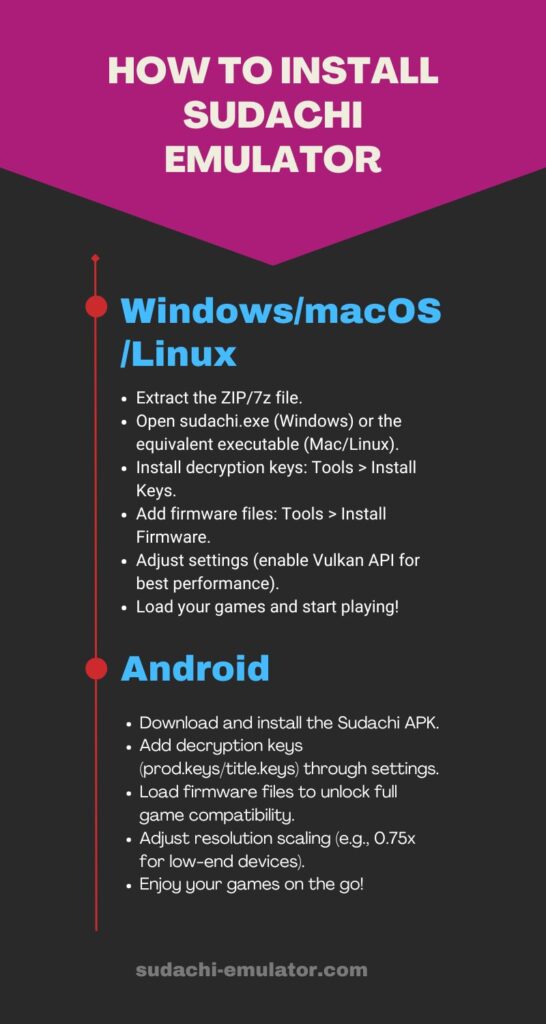
For Windows/macOS/Linux
- Extract the ZIP/7z file.
- Open sudachi.exe (Windows) or the equivalent executable (Mac/Linux).
- Install decryption keys: Tools > Install Keys.
- Add firmware files: Tools > Install Firmware.
- Adjust settings (enable Vulkan API for best performance).
- Load your games and start playing!
No installer is needed for this.
For Android APK Installation
- Download and install the Sudachi APK.
- Add decryption keys (prod.keys/title.keys) through settings.
- Load firmware files to unlock full game compatibility.
- Adjust resolution scaling (e.g., 0.75x for low-end devices).
- Enjoy your games on the go!
Try Sudachi Emulator

Join Official Sudachi Emulator Channel
Get Sudachi updates, new builds, fixes, guides, and early test versions — ONLY on Telegram.
Firmware & Keys Installation Process
Sudachi Emulator Require:
- Suitable Device Firmware
- Right Encryption Keys
These must be extracted from a real Nintendo Switch that you have and without these it will not Run Switch games on Android and PC.
Configuring Controls
User Can Select:
- Touch Controls Setting (For Android)
- Keyboard Integration
- Bluetooth Or USB Controllers
The right configuration of emulator improves the responsiveness and comfort to play.
Pros & Cons
Pros
- Completely Free – No hidden costs, no premium versions, just download and play.
- Optimized for Android & PC – Runs well on mid-range devices with performance tweaks.
- Regular Updates – Improvements in game compatibility, stability, and speed.
- Flexible Input Support – Play with touch controls, keyboard, or controllers.
Cons
- Not Every Game Runs Perfectly – Some titles may experience bugs or performance drops.
- Requires Decryption Keys & Firmware – You need legally obtained files from your own Switch.
- Limited Community Contributions – Since only the creator develops it, some features take longer to implement.
FAQs
Is Sudachi really free?
Yes! Sudachi Emulator is 100% free and open-source, with no hidden fees.
Can I play all Nintendo Switch games?
Many games run smoothly, but some may have performance issues or crashes. Compatibility improves with updates.
Do I need a Nintendo Switch to use Sudachi?
Yes. You need to legally obtain decryption keys and firmware from your own Switch.
What are the system requirements?
Android: Version 11+ recommended. Windows/macOS/Linux: A mid-range CPU & Vulkan-compatible GPU work best.
Is Sudachi Emulator Legal?
Yes, switch emulators are legal, but firmware and games should be obtained by your own hardware.
Do I Need a Real Nintendo Switch?
Yes, it is compulsory to setup firmware and encryption keys legally.
Why Do Some Games Crash?
It happens due to low hardware, unsupported games and also missing of files.
How to Fix Common Errors?
Adjusting the graphics of games, updating to sudachi emulator to latest version and reinstalling of firmware can fix common errors.
Does Sudachi Work on All Devices?
No, it not. It solely depends on the devices power and compatibility due to simplicity.
Conclusion
Sudachi emulator is a clear winner in majority of audience due its flexibility, strong android support, easy setup and cross platform compatibility. The use can enjoy Nintendo Switch games beyond the original switch from sudachi emulator.
It attracts to both beginner user and experienced one but the performance of solely depends on the user’s device hardware, firmware configuration and proper graphic setting. It’s a solid choice for users who need modern emulation and freedom.